The Adobe Launch Extension
Introduction
If you manage tracking for more than a handful of websites, you already know the quiet pain of working in Adobe Launch (now officially Adobe Experience Platform Data Collection, but still called Adobe Launch or Adobe Tags by most of us).
Moving a rule from one property to another means rebuilding it by hand. Comparing two containers means clicking through endless screens. And there’s no native “export this container to a file” button the way Google Tag Manager has. That’s the gap this Adobe Launch extension was built to close.
The Adobe Launch Exporter is a lightweight Chrome extension that talks directly to Adobe’s Reactor API and gives you three things the Launch UI never has: clean exports, real migrations, and a full multi-container audit — without leaving your browser.
Below is a tour of what it does, who it’s for, and how it’s built.
What Is the Adobe Launch Exporter?
The Adobe Launch Exporter is a Chrome extension that connects to your Adobe Data Collection account using your own API credentials and reads (or writes) your container configuration. Everything happens locally in your browser — your access token and client ID are stored in Chrome’s local storage and never sent anywhere except Adobe’s own API.
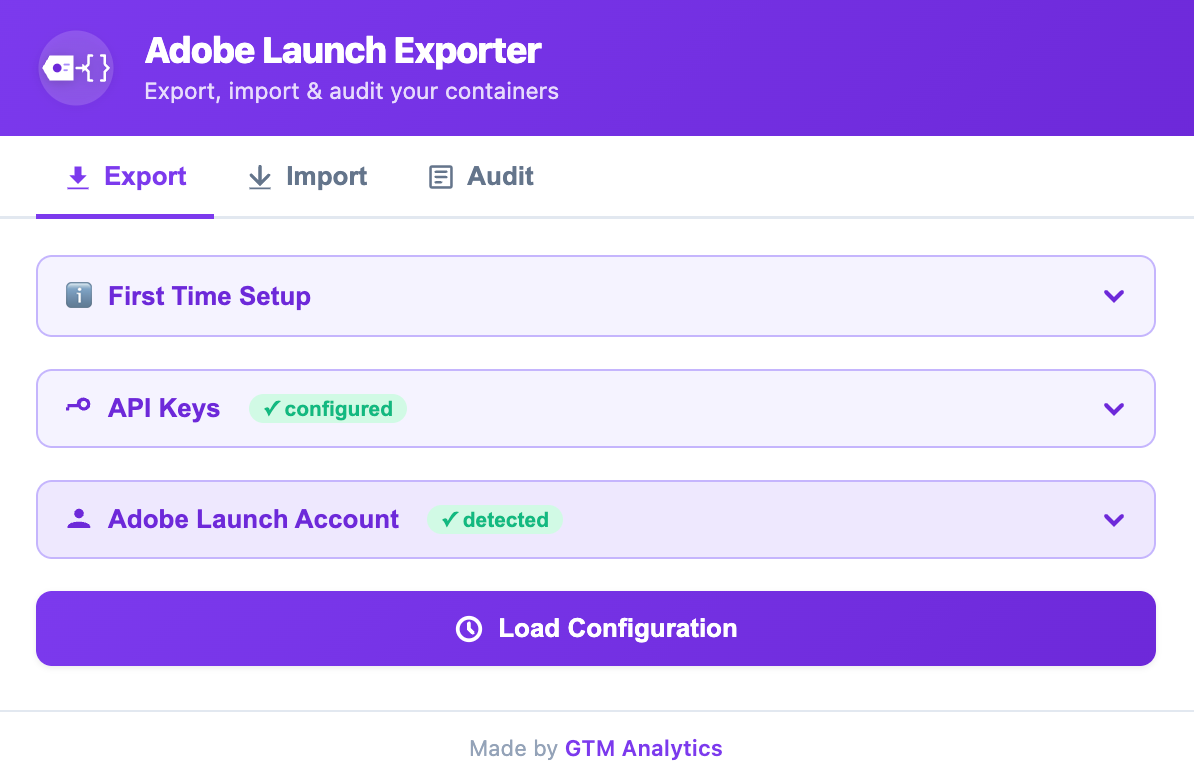
It’s organized into three tabs that map to three real jobs:
- Export
- Import
- Audit
- and lilely more to come soon
Features
Selective, searchable container export
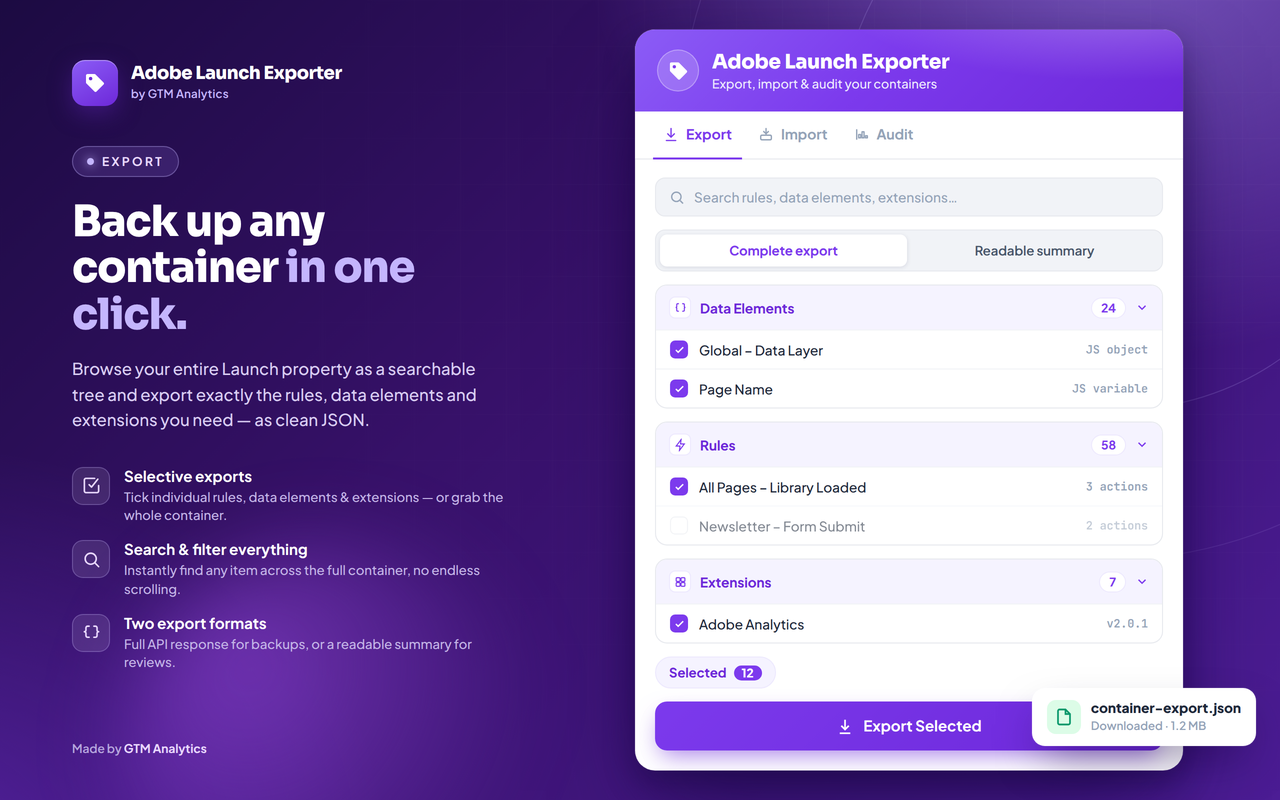
The Export tab loads your entire Launch property and lays it out as a browsable tree of data elements, rules, and extensions. You can search and filter across everything, expand or collapse groups, and tick exactly the items you want — or grab the whole container with one “Select all.”
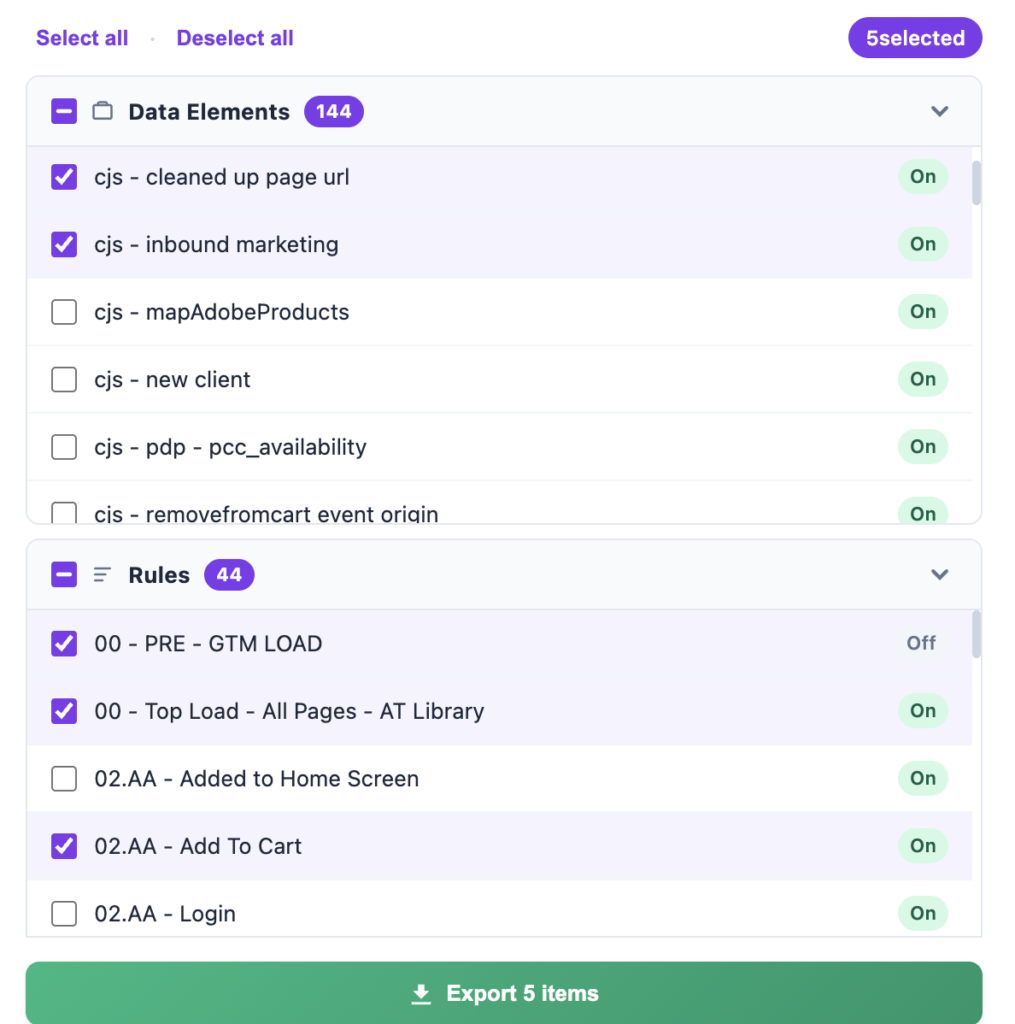
Because it paginates through the Reactor API properly, nothing gets silently truncated at 25 or 100 items. The result downloads as JSON in two flavours: a complete export with the full API response, or a readable summary that keeps only the essentials (names, types, settings, components). Your last loaded config and selections are cached, so reopening the popup picks up where you left off.
True container-to-container import and migration
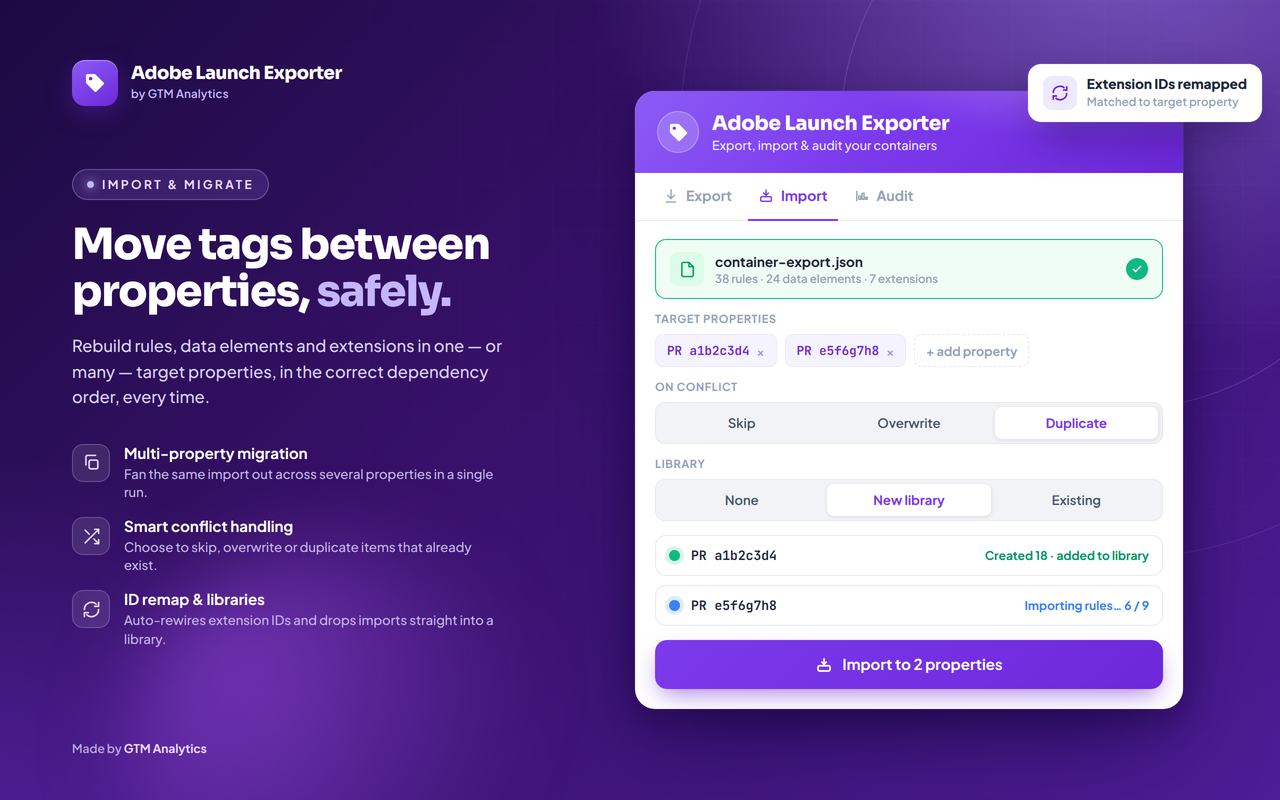
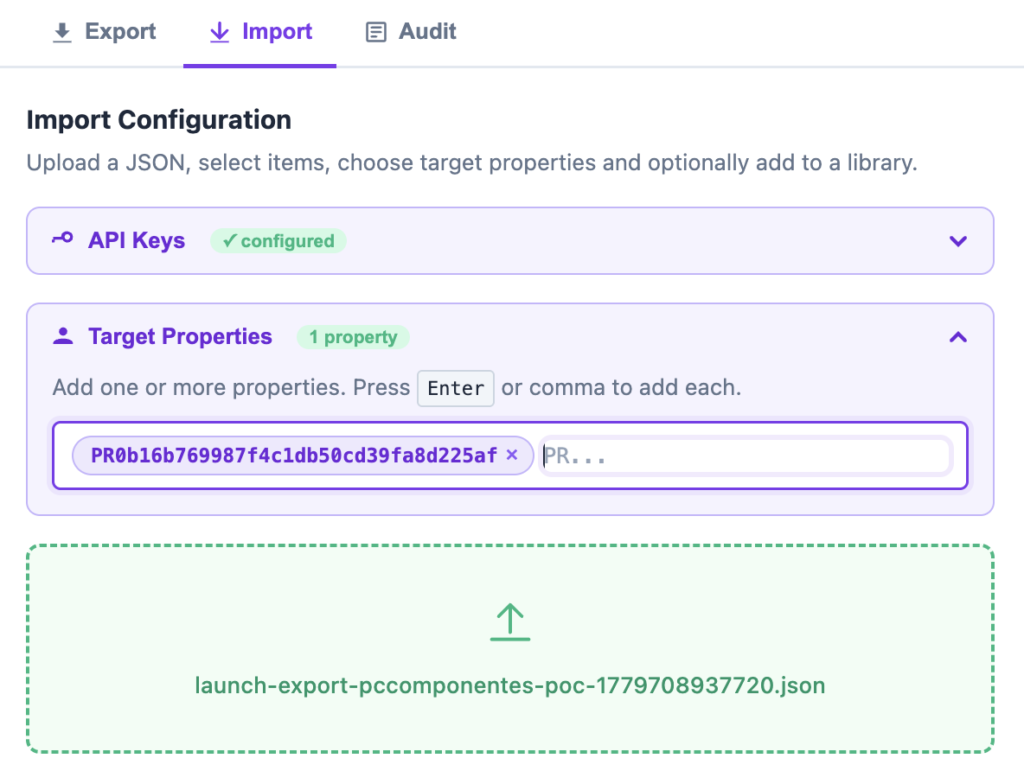
This is where the Adobe Launch extension goes beyond a simple exporter. The Import tab takes an exported JSON file and rebuilds the selected items in one or more target properties. You add target property IDs as tags, pick what to migrate, and the extension handles the dependency order for you — extensions first, then data elements, then rules and their rule components (triggers, conditions, and actions).
A few details make this genuinely usable in production:
- Multi-property fan-out — run the same import across several properties sequentially, each with its own live progress block showing what was created, skipped, or failed.
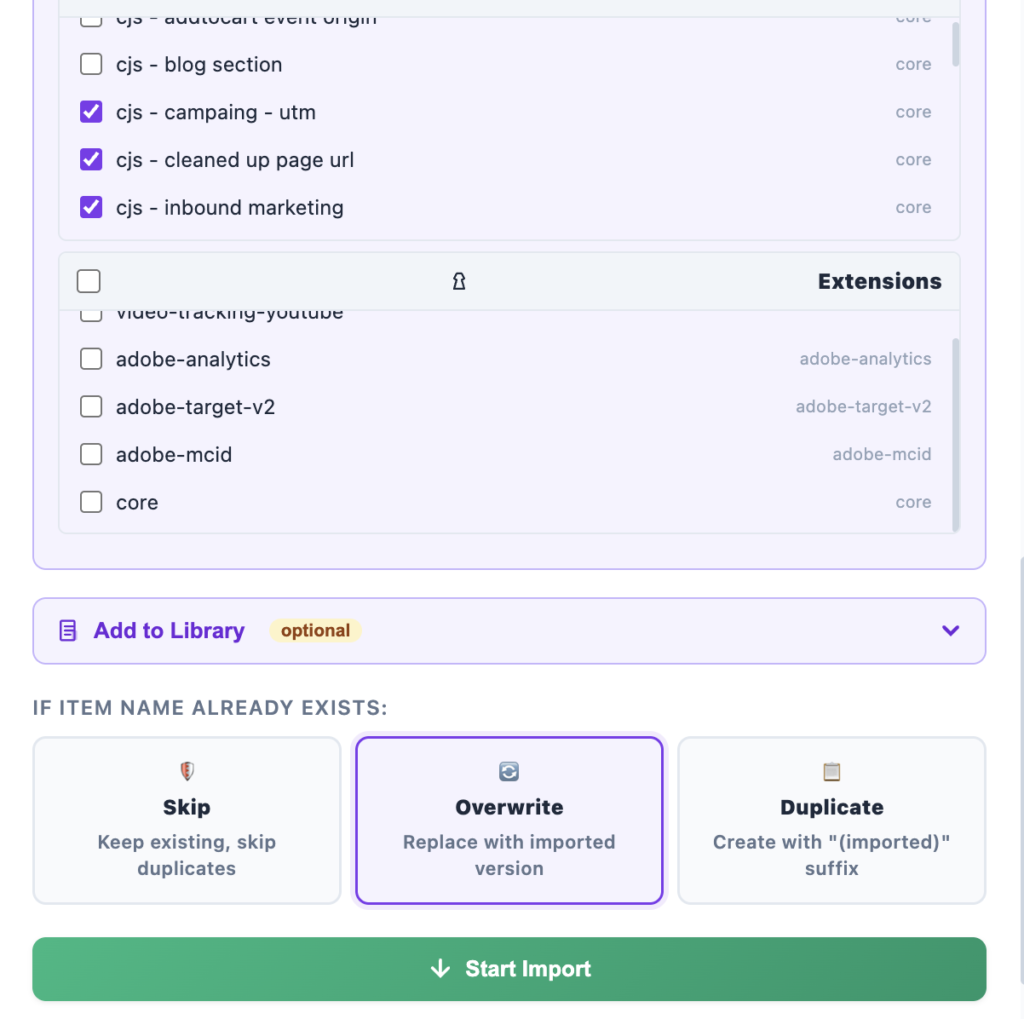
- Conflict handling — choose to skip, overwrite, or duplicate items that already exist by name, so you never accidentally clobber a live container.
- Extension ID remapping — extension IDs differ between properties, so the tool builds a map of the target property’s installed extensions and rewires references automatically.
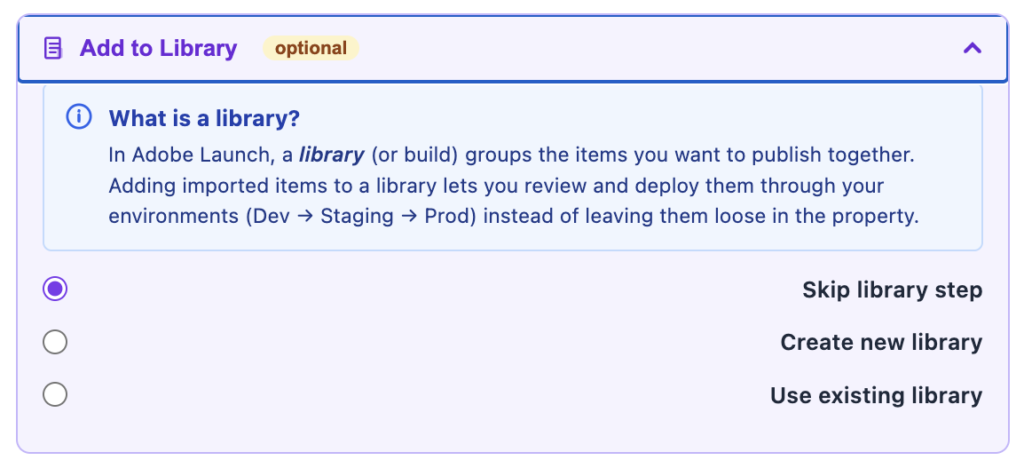
- Library options — drop the imported items into a new library, an existing library (by
LBID), or none at all, ready for you to publish on your own schedule
A real audit dashboard for every container
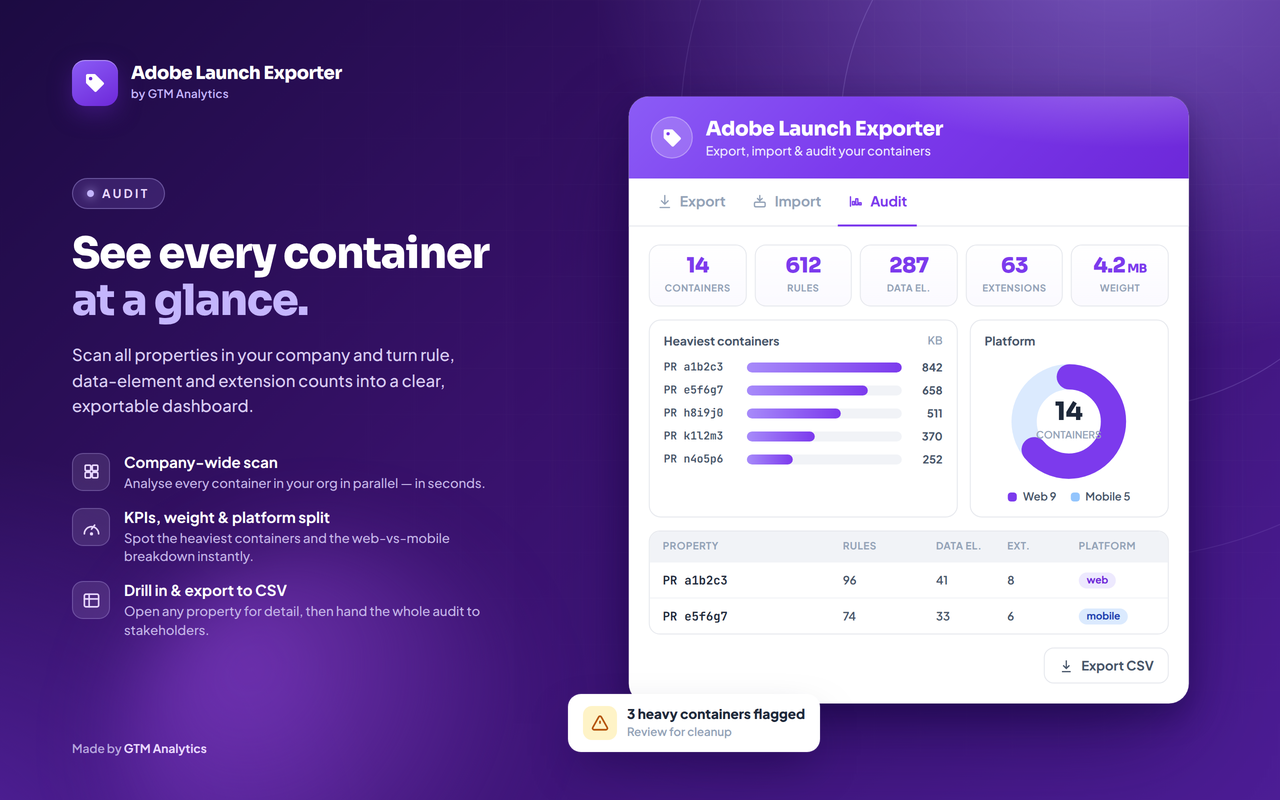
The Audit tab scans every property in your company at once and turns the result into a dashboard. It pulls counts of rules, data elements, and extensions per container (in parallel batches for speed), then renders KPI cards, a top-weight bar chart, a web vs. mobile platform donut, and a sortable, searchable table. Click any row to drill into a single container, and export the whole audit to CSV for stakeholders or governance reviews.
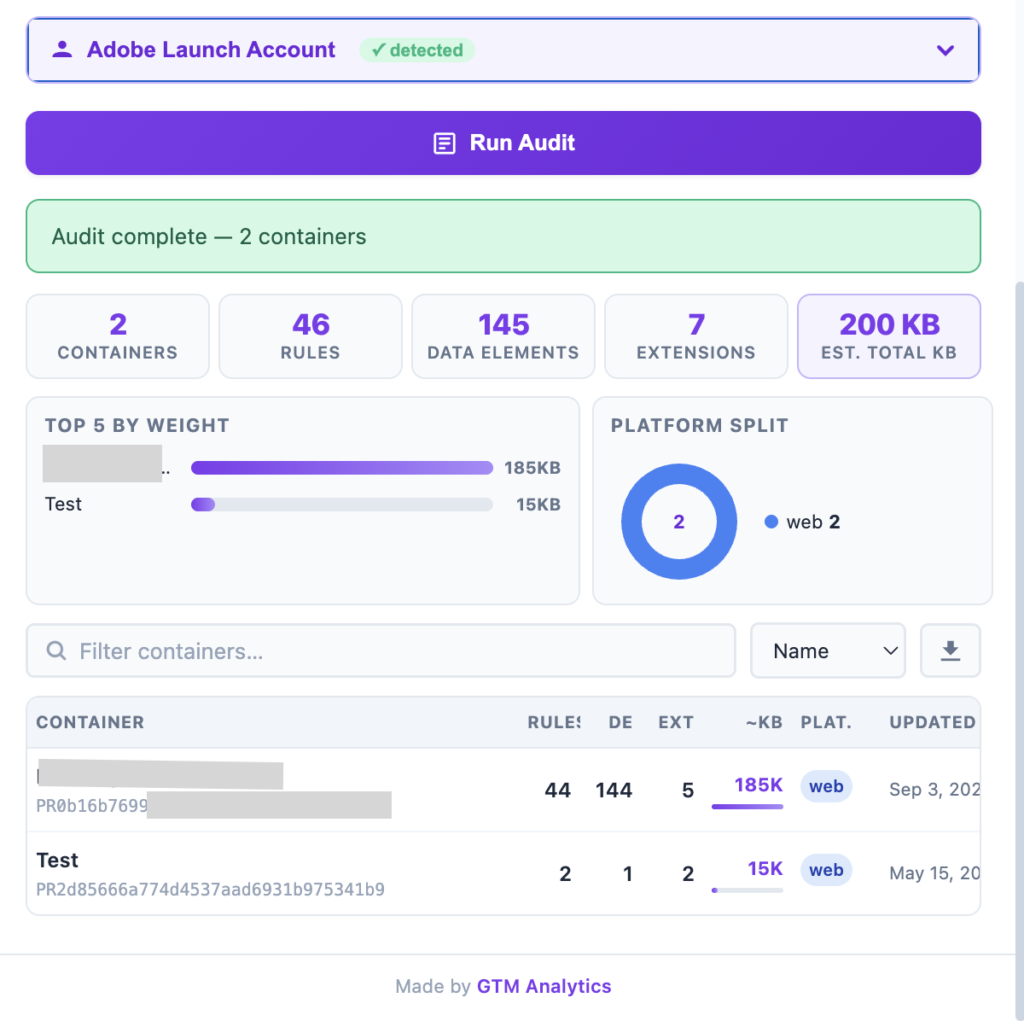
The “weight” figure is a simple heuristic that estimates relative container size from its rules, data elements, and extensions — a fast way to spot the bloated properties that deserve a cleanup.
Quality-of-life touches
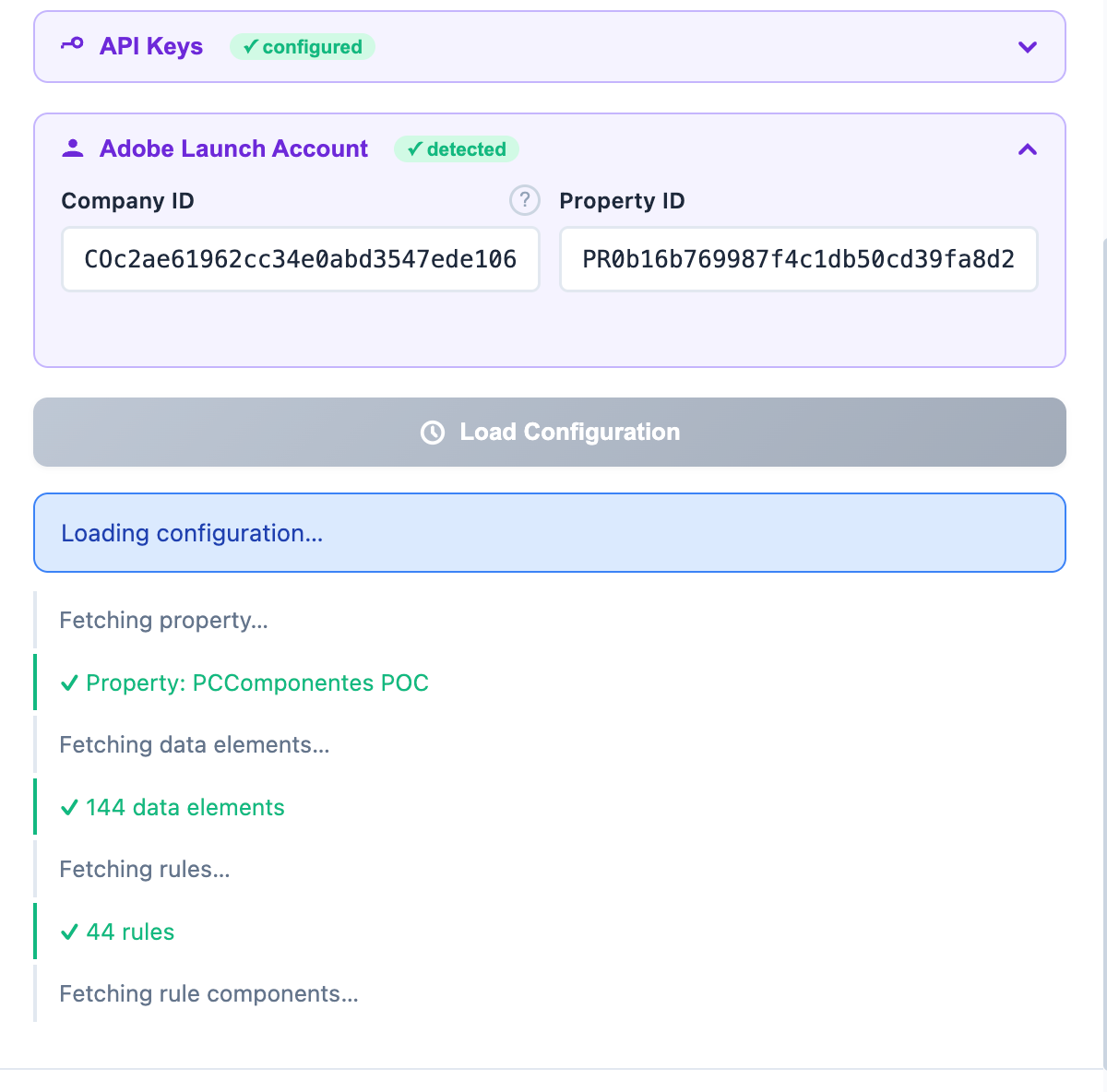
- Auto-detect — open a Launch property in Adobe Experience Cloud and the extension reads the Company ID and Property ID straight from the URL, so you barely have to type.
- Credentials remembered — your token and client ID are saved locally and shared across all three tabs, with a small badge confirming when you’re authenticated.
- Private by design — no third-party servers, no logging of your credentials; API calls go directly to
reactor.adobe.io.
Use Cases
A tool like this earns its place the moment you stop working on a single property. Some of the most common scenarios:
- Exporting/Importing container to JSON file. This helps you for future import, migrations and copy/pasting data elements across properties. It also helps you to pass your JSON file to an LLM to create documentation or achieve an audit.
- Promoting changes through dev → staging → production. Build and test a set of rules and data elements in a sandbox property, export them, then import into your production container with overwrite mode and a fresh library — no manual rebuilds.
- Standing up a new market or brand. Spinning up the tenth regional site? Export your “golden” template container and fan it out across every new property in one import run, keeping your tagging consistent everywhere.
- Agencies and consultants managing many clients. Reuse proven rule sets and data element libraries across client accounts instead of recreating them from scratch each time.
- Governance and spring cleaning. Run the audit across all containers to find the heaviest properties, spot rule and data-element sprawl, and back up every container as JSON for version control or disaster recovery.
- Migrations and handovers. Hand a client or a new team a complete, readable export of exactly what’s in their container — far easier to review than clicking through the Launch UI.
Getting Started
- Download the Adobe Launch Chrome extension
- In the Adobe Developer Console, open your project, choose OAuth Server-to-Server, and generate an access token. Copy the token and the Client ID.
- Open a Launch property in Adobe Experience Cloud — the extension auto-detects your Company ID (
CO…) and Property ID (PR…) from the URL. - Click the extension icon, confirm your credentials, and pick a tab: Export to download, Import to migrate, or Audit to analyze.
Access tokens expire after 24 hours, so if you hit a “token expired” message, just generate a fresh one.
FAQ
Is this an official Adobe Launch extension?
No. It’s an independent Chrome extension that uses Adobe’s public Reactor API. You authenticate with your own credentials, and it only accesses properties you already have permission to manage.
Does it send my data anywhere?
No. Credentials and configuration stay in Chrome’s local storage, and every API call goes directly to Adobe. There are no third-party servers in the loop.
How is this different from Adobe Launch’s built-in extensions?
Inside Launch, “extensions” are integrations you install into a property. This is a browser extension that sits outside Launch and manages the whole container — exporting, importing, and auditing it through the API.
Can it move rules between two different Adobe Launch properties?
Yes — that’s exactly what the Import tab does, including rule components, data elements, and the underlying extensions, with conflict handling and library placement.
Final Thoughts
Adobe Launch is powerful, but its lack of a native export-and-migrate workflow turns routine tasks into hours of manual clicking. This Adobe Launch extension brings the convenience Google Tag Manager users take for granted — and adds a company-wide audit dashboard on top. Whether you’re promoting changes between environments, rolling out a template to dozens of properties, or just trying to understand what’s living in your containers, it turns a tedious afternoon into a few clicks.